How to manage a shared project plan in Excel
Learn best practices for managing a shared Excel project plan across multiple team members. Avoid conflicts, protect data, and maintain version control.

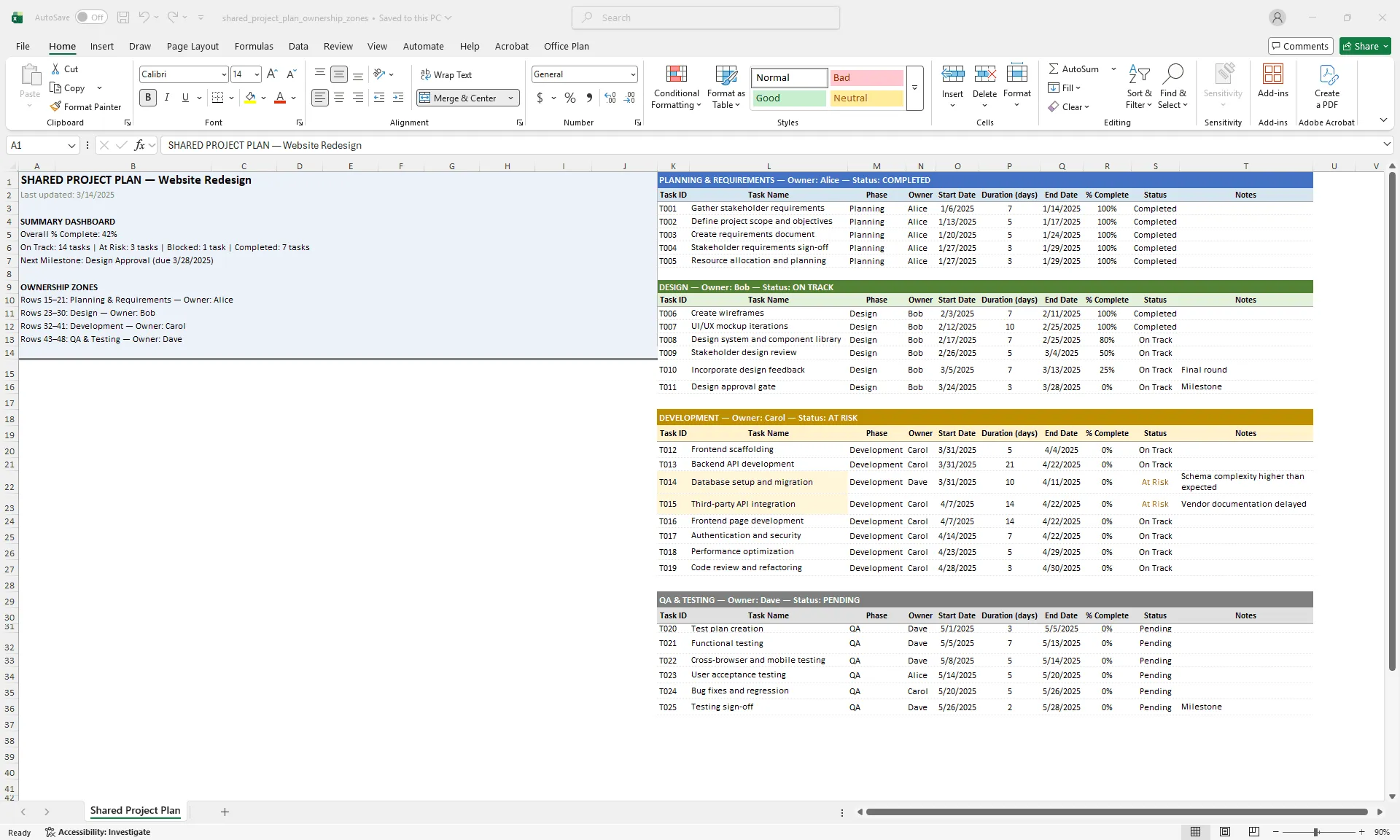
Excel shared project plan with color-coded ownership zones by phase, showing which team member edits which section, with a read-only summary dashboard.
Quick answer
Manage shared Excel project plans by enabling shared workbook mode, assigning ownership zones where different people edit different sections, protecting critical formulas and data ranges, maintaining a clear change log, and establishing strict update protocols. The goal is keeping one source of truth that the whole team can rely on without stepping on each other's work.
Introduction
Your project plan is solid. It's detailed, accurate, and built with careful formulas. Then you share it with your team, and within two days the formulas are broken, two people have edited the same row at the same time, and nobody knows which version is current.
This is where collaboration breaks visibility. Excel was designed as a single-user tool. Shared workbooks exist, but they're fragile. When multiple people edit the same file simultaneously, conflicts multiply fast. Formulas break. Data gets corrupted. Version history becomes impossible to track.
Yet shared project plans are essential. Your team needs access to the current schedule, and you need real-time progress updates. The challenge is managing this within Excel's limitations so the plan stays trustworthy.
In this guide, we'll walk through strategies to make shared project plans work: how to set up shared workbooks properly, protect critical data, assign clear ownership zones, and establish protocols that keep one reliable source of truth.
The challenges of collaborative Excel project plans
Before we solve for shared plans, let's be clear about why they're hard:
Simultaneous editing conflicts. When Alice and Bob both edit row 5 at the same time, Excel can't auto-merge the changes. You get a conflict resolution dialog that forces you to choose one version. Data loss is inevitable.
Formula breakage. If someone deletes a column your formulas reference, every downstream calculation breaks. If someone inserts rows in the middle of a formula range, the range doesn't auto-adjust.
Version chaos. With multiple copies floating around (your copy, Bob's copy, the shared version), you end up with diverging data. Which version is current? Nobody knows, and that ambiguity erodes trust in the plan.
Lock-ups and slowness. Shared workbooks perform poorly with many edits, especially over network drives.
Permission limitations. Excel's sharing model is binary: either someone has edit access to the entire workbook, or they don't. You can't granularly control "this person can edit task rows 5–10 but not formulas or team assignments."
Change tracking gaps. Excel's change tracking works, but it's often overlooked or disabled. Nobody knows what changed, who changed it, or when.
These aren't bugs. They're architectural limitations of a single-user spreadsheet tool being stretched to do multi-user collaboration. The strategies below work within these constraints to protect your plan's integrity.
Setting up a shared workbook properly
If you're going to use a shared workbook, minimize the chaos by setting it up correctly from the start.
Step 1: Enable shared workbook mode
In Excel:
- Save the file to a shared location (network drive, OneDrive, SharePoint)
- Go to Review > Share Workbook
- Check "Allow changes by more than one user at the same time"
- Click OK
This enables shared workbook mode. Excel will allow multiple simultaneous editors, but with the conflict risks described above.
Important: Once you enable shared mode, some features become unavailable: conditional formatting, data validation, and pivot tables. You trade functionality for collaboration.
Step 2: Set up a shared location
Shared workbooks only work on shared storage:
- Network drive (traditional, requires IT infrastructure)
- OneDrive (cloud-based, accessed via File > Open > OneDrive)
- SharePoint (enterprise option with better permission controls)
- Google Drive (if using Google Sheets instead of Excel)
The advantage of OneDrive or SharePoint: automatic version history. If someone breaks something, you can revert to a previous version.
Best practice: Store the project plan on OneDrive or SharePoint, not a local network drive. Cloud storage handles conflicts better and maintains version history automatically.
Step 3: Disable conflicting features
In shared workbook mode, remove features that don't work reliably:
- Delete any conditional formatting (it gets disabled anyway)
- Simplify formulas where possible (complex formulas are error-prone in shared mode)
- Remove pivot tables (they don't work in shared workbooks)
Step 4: Enable change tracking
Go to Review > Track Changes > Highlight Changes
Check:
- "Track changes while editing"
- "Highlight changes on screen"
- List changes on a new sheet (optional, but helpful for audit)
Now every edit is recorded: who made it, when, and what changed. You can review all edits at the end of each week and catch problems before they compound.
Version control strategies
Even with shared workbooks, version control is essential.
Archive weekly snapshots. Every Friday afternoon, save a copy of the current project plan with the week date: ProjectPlan_2025-03-14.xlsx, ProjectPlan_2025-03-21.xlsx. Store these in a separate "Archive" folder. If data gets corrupted, you can revert to last week's version.
Create a change log. Maintain a simple change log in a separate sheet within the workbook:
| Date | Changed by | What changed | Reason |
|---|---|---|---|
| 3/10/2025 | Alice | Task 5 duration 10→12 days | Resource constraint |
| 3/11/2025 | Bob | Task 8 owner Alice→Carol | Workload rebalancing |
| 3/12/2025 | Carol | Milestone date 4/4→4/8 | Design delay |
This creates an audit trail. You can see what changed, who changed it, and why. That transparency is what keeps the team trusting the plan.
Use comments, not edits, for discussion. If there's debate about a task date or owner, don't keep editing it back and forth. Use Excel comments (Insert > Comment) to flag questions, discuss in a meeting or Slack, then update once with consensus. This prevents the edit ping-pong that breaks shared workbooks.
Who edits what: assigning ownership zones
The key to preventing conflicts is minimizing simultaneous edits. Assign clear ownership zones so each person knows exactly which rows they're responsible for.
Define ownership by phase or team
Divide your project into phases or teams, and assign ownership:
| Rows | Phase | Owner | Updates |
|---|---|---|---|
| 1–10 | Requirements | Alice | Status, % complete, risks |
| 11–20 | Design | Bob | Status, % complete, risks |
| 21–35 | Development | Carol | Status, % complete, risks |
| 36–45 | Testing | Dave | Status, % complete, risks |
Each person touches only their rows. This dramatically reduces conflict risk.
Establish update permissions
Make it clear what each person can and cannot edit:
- Can edit: Task status, % complete, actual dates (if a task moved)
- Cannot edit: Task name, duration estimates, owner assignments, formulas
Document this in the project plan's introduction or as a comment in the shared file.
Create a read-only dashboard
Create a separate dashboard sheet that pulls data from the detailed plan:
| SUMMARY DASHBOARD (Read-only) Overall % Complete: [Formula: =AVERAGE(detail plan % complete)] On Track: [Count] At Risk: [Count] Blocked: [Count] Next Milestone: [Next milestone date] |
People can read this summary without editing it. Protect the sheet to prevent accidental changes. This gives stakeholders the visibility they need without putting the data at risk.
Protecting critical formulas and data ranges
Protect your data from accidental (or intentional) breakage.
Protect specific cells. Select the cells you want to protect (e.g., all formula cells). Go to Review > Protect Sheet. Choose what people are allowed to do (edit cells, but not delete rows). Set a password if needed. Now people can update data cells but can't break formulas or delete rows.
Protect columns. Lock critical columns like Task Name, Owner, or Duration so people can edit dates and status but not task definitions. Select the column header, set cells to "Locked" in Format Cells, then apply sheet protection.
Create a template section. At the top of your shared plan, add a template row (grayed out or frozen) showing the expected format:
| TEMPLATE: [Sample task row showing all columns and data types] |
This prevents people from guessing how to format data. They copy the template and fill it in correctly.
Maintaining data integrity in a shared workbook
Shared workbooks are accident-prone. These practices minimize damage:
Back up daily. Set a standing reminder to save a backup copy of the shared workbook to local storage. If the shared workbook gets corrupted (it happens more often than you'd expect with shared mode), you have a recent backup.
Limit the number of editors. The more people editing simultaneously, the higher the conflict risk. Three to five concurrent editors is a practical limit. If more people need access, they should use a read-only copy.
Use a central update window. Instead of everyone updating whenever they want, establish a fixed time:
- Tuesday mornings 9–10 AM: All status updates happen
- Friday afternoons 3–4 PM: Final week recap and next week preview
This reduces simultaneous edits significantly and creates a predictable cadence.
Communicate changes proactively. When someone makes a significant change (milestone date slip, scope change), send a quick message announcing it: "Task 5 (Database design) duration extended from 10 to 14 days due to schema complexity. New completion date: 4/2 instead of 3/29. This pushes Development start by 4 days." This creates a record and alerts the team immediately, rather than them discovering the change later.
When to move beyond shared Excel
Shared Excel works for small teams and simple projects, but it breaks under strain.
Move to dedicated tools when:
- Your project has more than 30 tasks
- More than 5–10 people need to edit simultaneously
- You have complex dependencies or resource constraints
- You need real-time notifications and collaboration
- You need detailed permission controls (who can edit what)
Tools like Microsoft Project, Asana, Monday.com, or Jira handle multi-user collaboration far better than shared Excel. They were built for it.
However, if you're staying in Excel (and most PMs are), the strategies above will keep your shared plan trustworthy and your team aligned.
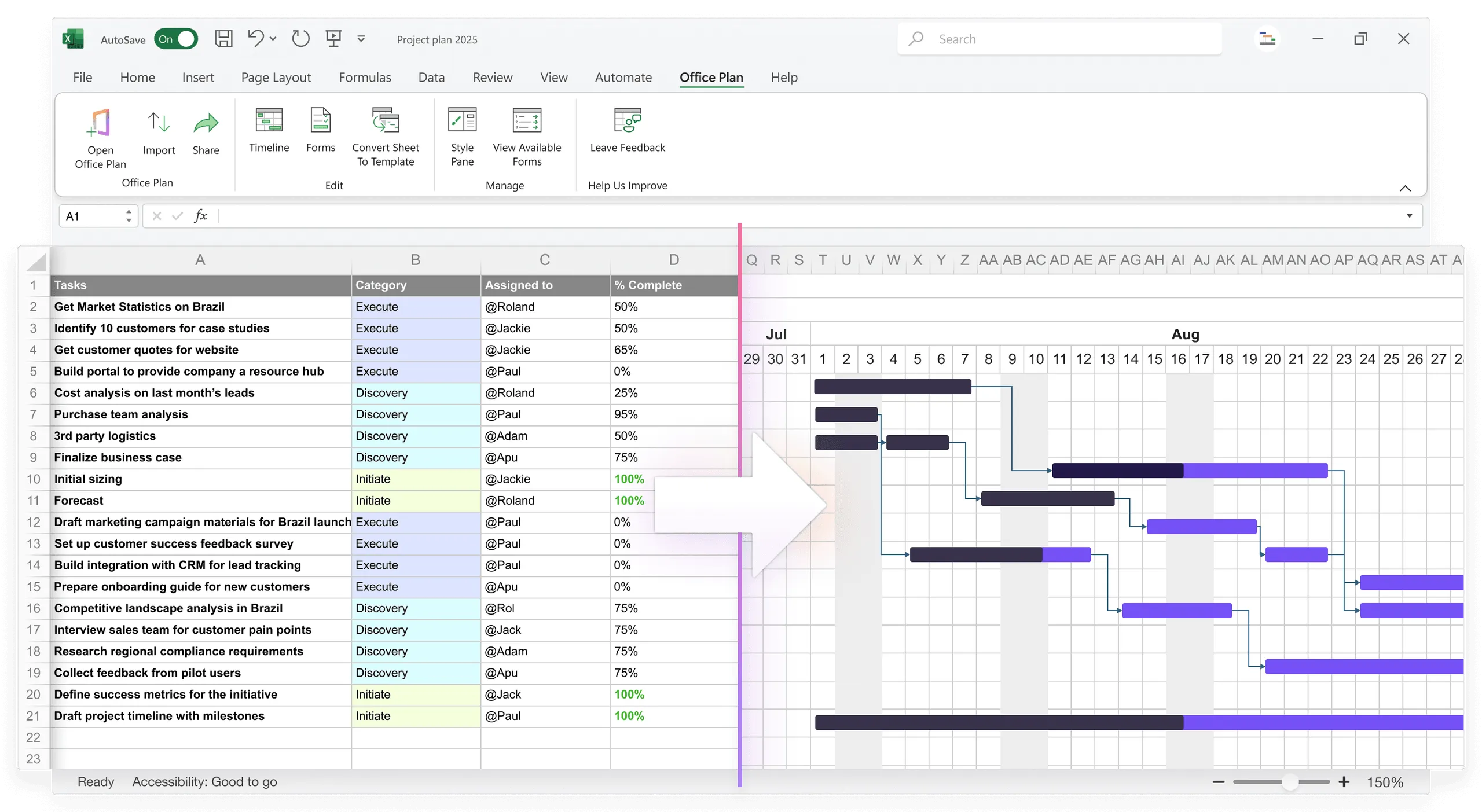
For teams that stay in Excel, Office Plan can reduce one of the biggest friction points: turning your shared plan data into a clear visual. Office Plan reads your Excel project data and generates a professional Gantt chart or timeline right inside the spreadsheet.
Everyone works from the same file, and the visual layer stays connected to the data. No exporting, no separate presentation file to maintain, no version that drifts out of sync.
Frequently asked questions
Excel will show a conflict resolution dialog asking you to choose whose edit to keep. One person's data is lost. Prevention is better: assign clear ownership zones so people edit different rows. If conflict is unavoidable, use comments to discuss first, then one person makes the final edit.
Yes, and many teams find it easier. Google Sheets handles simultaneous multi-user editing better than Excel shared workbooks. It auto-saves, maintains version history, and has fewer conflict issues. The trade-off: fewer advanced features than Excel, and compatibility issues if you need Excel-specific formulas.
Shared workbooks (Review > Share Workbook) are an older Excel feature designed for network drives. Cloud-synced files (OneDrive, SharePoint) are the modern approach. You open the file directly from the cloud and changes sync automatically. Cloud-synced files are more stable. Use OneDrive or SharePoint instead of legacy shared workbook mode when possible.
Protect the sheet (Review > Protect Sheet) and configure it so users can edit cell contents but not insert or delete rows. This allows data updates without structural changes that break formulas.
No, that creates a bottleneck. Team leads and owners should update their own tasks' progress. But the PM should control structure (task names, owner assignments, phase groupings). Use sheet protection to enforce this: allow edits to status and progress columns, but lock structural columns.
Excel will keep the change tracking and merge any pending edits, then disable shared mode. However, some changes made in shared mode might not have been fully merged. It's risky. Once you go shared, keep it shared until you're ready to consolidate final data and move to a new (non-shared) file.
Key takeaways
- Shared Excel workbooks work for small teams and simple projects, but they're fundamentally fragile. Set them up carefully or they erode trust in the plan.
- Use cloud storage (OneDrive or SharePoint) instead of network drives. Cloud handles conflicts better and maintains version history automatically.
- Assign clear ownership zones so each person edits only their rows. This is the single most effective way to prevent conflicts.
- Protect critical formulas and structural columns. Accidental deletions break everything downstream.
- Enable change tracking and maintain a change log. Transparency about what changed and why keeps the team trusting the data.
- Establish fixed update windows (Tuesday mornings, for example) instead of continuous editing. A predictable cadence reduces conflicts.
- Archive weekly backups. Shared workbook corruption is more common than you'd expect, and a recent backup is your safety net.
- For teams staying in Excel, tools like Office Plan keep your shared data and your project visuals connected in one file, so there's no separate version to maintain or sync.
Project management tips and tricks
Keep your shared plan and your visuals in one place
Managing a shared Excel project plan is already complex. Adding a separate presentation file that needs manual updating every week compounds the problem. More files, more versions, more drift. Office Plan keeps everything in one place. It reads your shared project data and generates a professional Gantt chart or timeline right inside Excel. When the team updates the plan, the visual stays current. One file. One source of truth. Full clarity for every audience.