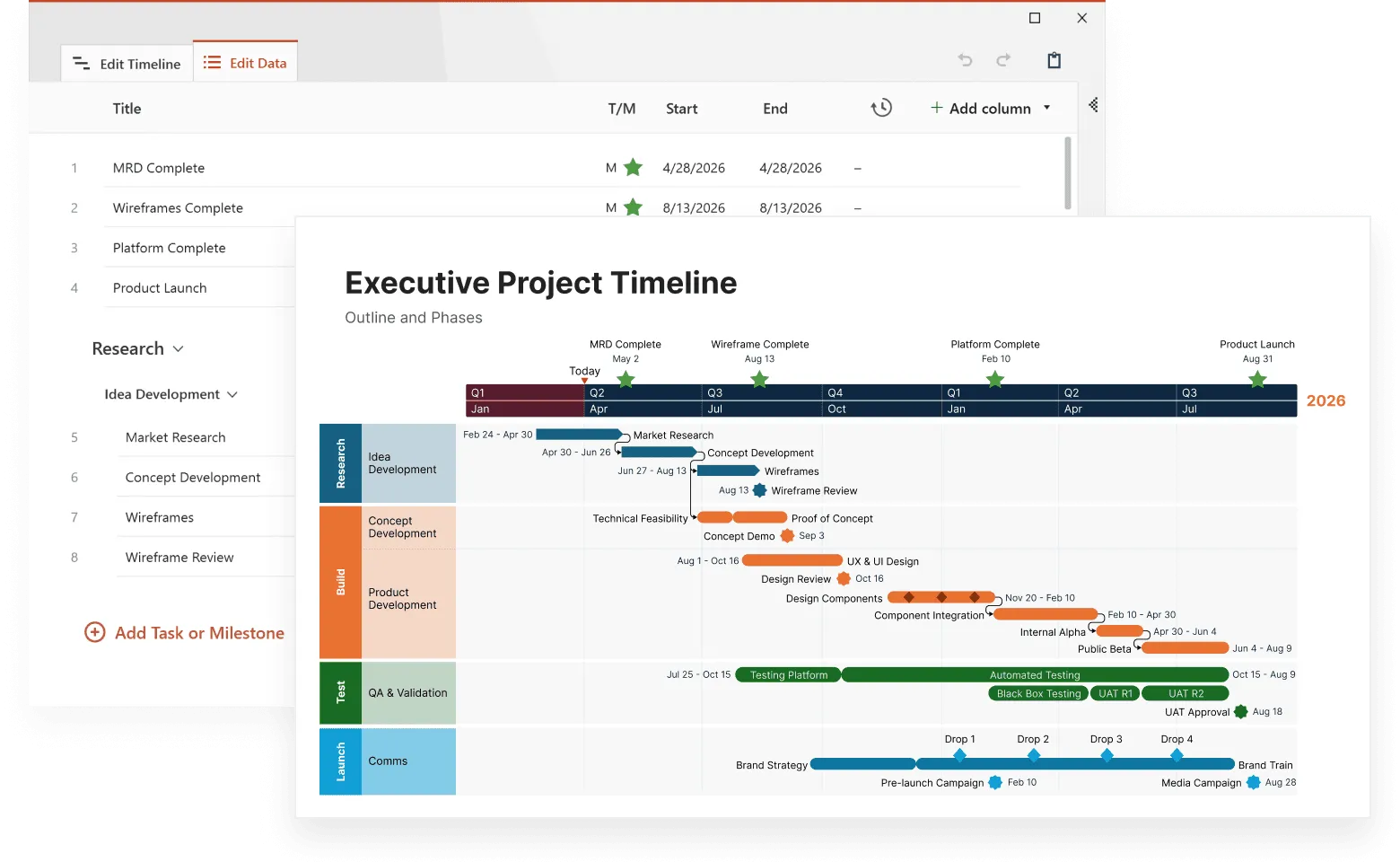
Plain text timelines serve their purpose, but they often fall short when you need to tell a complete story or present complex information in an engaging way. Multimedia timelines change this dynamic by combining visual and audio elements with chronological data, creating presentations that capture attention and improve comprehension.
When you add images, videos, and audio to your timeline, you're not just decorating a simple list of dates. You're building a multi-sensory experience that helps viewers understand context, emotion, and significance in ways that text alone cannot provide.
This article explores the technical considerations, design principles, and practical strategies for creating multimedia timelines that communicate clearly and keep your audience interested.
If you’re looking for even more dynamic ways to present information, explore how interactive timelines elevate engagement through clickable elements and responsive design.
Why multimedia elements matter in timeline creation
Research shows that people process visual information approximately 60,000 times faster than text; it takes only 13 milliseconds for the human brain to process an image. This processing speed advantage becomes particularly important when presenting historical events, project milestones, or educational content where context matters as much as chronology.
A timeline with images and videos allows viewers to see what actually happened instead of just reading text descriptions. Consider documenting a product development cycle: showing actual prototypes, team photos from brainstorming sessions, and video clips of user testing sessions offer far more insight than bullet points listing "prototype completed" or "user feedback collected."
Audio elements add another dimension entirely. A timeline with audio can include recorded interviews with key participants, ambient sounds from specific time periods, or narration that guides viewers through complex sequences of events. This combination creates what researchers call "multimodal learning," where different types of information reinforce each other.
Getting started with multimedia timelines
Adding images, videos, and audio to your timelines takes more time upfront; you'll spend hours optimizing file sizes, writing alt text, and testing loading speeds across devices. However, users spend 3x longer viewing multimedia timelines compared to text-only versions, and educational timelines show 40% better information retention rates. The improved user engagement and comprehension make the time and effort investment worthwhile.
Begin with images only for your first multimedia timeline project. Master file compression, responsive image sizing, and alt text creation before adding videos or audio. This focused approach prevents you from juggling multiple technical challenges simultaneously.
After completing one image-based timeline, you'll understand the production workflow well enough to add video elements to your next project. Each multimedia timeline teaches you optimization techniques and content strategies that make subsequent projects faster and more polished.
Content strategy for multimedia timelines
Successful multimedia timelines require careful content curation. Not every timeline entry needs multimedia elements, and overloading your presentation can overwhelm viewers rather than engage them. Here are some basic steps to build a content strategy that serves your audience effectively:
Step 1: Identify your timeline's primary purpose
Start by identifying your timeline's primary purpose. Educational timelines benefit from explanatory videos and detailed images that illustrate concepts. Corporate timelines might focus on behind-the-scenes photos and recorded testimonials. Historical timelines often work best with period-appropriate images and archival audio recordings.
Step 2: Create a content hierarchy
Create a content hierarchy that guides viewers through your timeline logically. Major milestones deserve more elaborate multimedia treatment, while supporting events might need only simple images or brief audio clips. This approach prevents cognitive overload while maintaining engagement.
Step 3: Consider your audience's preferences
Consider your audience's technical capabilities and preferences. Professional audiences might appreciate detailed video explanations, while general audiences often prefer shorter, more visual content. Age demographics also influence multimedia preferences, with younger audiences typically expecting more interactive elements.
Boost visual impact
Try Office Timeline for free. Create crisp, polished timeline visuals that add structure and clarity to your message.
Content production workflows
When you're managing dozens of images, videos, and audio files across multiple timeline projects, disorganized workflows create bottlenecks and errors. A photographer might deliver images in different resolutions, a video editor could use inconsistent file naming, and content writers may skip alt text descriptions entirely.
Organization systems that prevent chaos:
- Standardize file naming - Use consistent patterns like "project-date-type-version.extension" (timeline-2024-03-video-v2.mp4). This prevents confusion when team members search for specific assets months later
- Create content templates - Build templates for different timeline entry types: major milestones get video + multiple images, supporting events get single images, background context gets audio clips. Templates speed up production and maintain consistency
- Version control for media files - Git LFS (Large File Storage) tracks changes to large media files without slowing down your main code repository. Cloud-based asset management systems like Dropbox or Google Drive also work, but require clear folder structures and access permissions
Design principles for engaging multimedia timelines
Visual consistency forms the foundation of effective multimedia timeline design. Establish a color palette, typography system, and visual style that remains consistent throughout your timeline. This consistency helps viewers focus on content rather than adjusting to changing design elements.
Information hierarchy becomes more important with multimedia elements. Use size, color, and positioning to indicate the relative importance of different timeline entries. Major events should visually dominate their sections, while supporting information remains accessible but secondary.
White space management requires extra attention in multimedia timelines. Dense layouts with multiple media types can quickly become cluttered and difficult to navigate. Generous spacing between elements allows each piece of content to have proper visual weight.
Interactive elements need clear visual indicators. Users should immediately understand which timeline elements they can click, tap, or hover over for additional content. Consistent button styles, highlight effects, and cursor changes help create this clarity.
Team coordination strategies
Assign specific roles to prevent overlap and missed deadlines. Content creators gather and prepare multimedia assets. Technical implementers optimize files and add them to timelines. Quality reviewers check factual accuracy, file formats, compression settings, and accessibility features before publication.
Document your standards in a shared guide that covers acceptable file formats, maximum file sizes, required alt text length, and approval processes. New team members can reference this guide instead of asking repeated questions.
Technical tips for multimedia timeline creation
Building an interactive multimedia timeline requires attention to file formats, loading speeds, and user experience. Video files particularly demand careful optimization. MP4 format with H.264 encoding typically provides the best balance between quality and file size for web-based timelines.
Image optimization matters just as much. Large, uncompressed photos can slow down your timeline's loading time significantly. JPEG format works well for photographs, while PNG handles graphics with sharp edges better. WebP format offers superior compression for modern browsers, though you'll want fallback options for older systems.
Audio integration presents its own challenges. MP3 remains the most compatible format across different devices and browsers. However, consider offering multiple audio quality options for users with varying internet speeds. Auto-playing audio can frustrate users, so always provide clear play/pause controls.
Responsive design becomes more complex with multimedia elements. Your visual timeline with multimedia needs to work equally well on smartphones, tablets, and desktop computers. This means planning for different screen orientations, touch interfaces, and varying processing capabilities.
Implementation approaches
Several technical approaches exist for creating multimedia timelines, each with distinct advantages and limitations.
HTML5 and CSS3 provide the most flexible foundation for custom multimedia timelines. This approach offers complete control over design and functionality but requires more development time and technical expertise. Modern CSS features like Grid and Flexbox simplify responsive layout creation, while HTML5 media elements handle video and audio playback.
JavaScript frameworks add interactivity and dynamic content loading. Libraries like GSAP handle smooth animations, while frameworks like React or Vue.js manage complex state changes as users interact with timeline elements. These tools become particularly valuable for engaging multimedia timeline experiences that respond to user actions.
Content management considerations affect long-term maintenance. Timelines with dozens or hundreds of entries benefit from database-driven content management rather than hard-coded HTML. This approach simplifies updates and allows multiple team members to contribute content without technical knowledge.
Third-party timeline tools offer faster implementation but less customization control. These platforms typically handle multimedia integration automatically but may limit design options or impose branding requirements.
Performance optimization strategies
Multimedia content significantly impacts loading times and user experience. These optimization techniques help maintain fast performance while delivering rich visual content:
- Lazy loading
Load images and videos only when users scroll to relevant timeline sections, reducing initial page load times and saving bandwidth for content users never see - Progressive enhancement
Start with a text-based timeline structure, then layer multimedia elements on top. This approach provides fallback functionality for users with slow connections or disabled JavaScript - Content delivery networks (CDNs)
Improve multimedia loading speeds by serving files from geographically distributed servers. This becomes particularly important for timelines with high-resolution images or long video segments - Video thumbnail generation
Reduce bandwidth usage while maintaining visual appeal by generating multiple thumbnail options for each video, allowing users to preview content before deciding to play full videos
Accessibility in multimedia timelines
Making your multimedia timeline accessible improves the experience for a much wider audience than you might expect. Captions help users watching videos in quiet offices or noisy coffee shops. Alt text descriptions appear when images fail to load on slow connections. Keyboard navigation works better for users who find mouse clicking tedious on long timelines. These accessibility practices create a better experience for all your visitors while meeting legal requirements in many jurisdictions.
Required accessibility features:
- Alternative content for media
Add descriptive alt text for images, captions for videos, and transcripts for audio content. Screen readers depend on these descriptions, and they also help users in noisy environments or those who prefer reading to listening - Keyboard navigation support
Users should move through timeline entries, play and pause media, and access all interactive features using only keyboard inputs. This helps users with motor disabilities and those who prefer keyboard shortcuts - Color contrast compliance
Maintain sufficient contrast between text overlays and background images or videos. Provide alternative ways to convey information that relies on color alone, such as using icons or text labels alongside color coding - Clear loading feedback
Display loading indicators when multimedia content is buffering or processing. Clear feedback prevents confusion about whether interactive elements are functional and helps users with cognitive disabilities understand system status.
Measuring multimedia timeline effectiveness
Analytics tracking for multimedia timelines requires monitoring both traditional metrics and media-specific engagement patterns. Track how long users spend viewing different sections, which multimedia elements receive the most interaction, and where users typically exit the timeline.
Completion rates indicate whether users view your entire timeline or abandon it partway through. High abandonment rates at specific points might indicate technical problems, content overload, or pacing issues.
Media engagement metrics provide insights into content effectiveness. Track video play rates, average viewing duration, and audio playback completion. These metrics help identify which types of multimedia content resonate most with your audience.
User feedback collection should address both content and technical aspects. Ask about loading speeds, ease of navigation, and overall comprehension improvement compared to text-only alternatives.
New technologies changing multimedia timelines
Several technologies that seemed experimental just two years ago now offer practical applications for timeline creators. These developments change how users interact with multimedia content and what's possible within browser environments.
360-degree video and immersive content:
Major browsers now support 360-degree video playback without plugins. Historical timeline creators use this for virtual museum tours or reconstructed historical events. Educational timelines can include 360-degree footage from scientific expeditions or archaeological sites. The technology works reliably, though file sizes remain large and require careful optimization.
AI-powered content automation:
Automated transcription services like Rev.ai and Otter.ai convert hours of audio interviews into text transcripts for timeline accessibility. Google's Cloud Vision API generates alt text descriptions for images automatically, though you'll still need to review and edit these descriptions for accuracy and context.
Speech recognition APIs allow voice-controlled timeline navigation. Users can say "jump to 1995" or "play the next video" instead of clicking through interface elements. This technology works particularly well for educational timelines in classroom settings.
Progressive web app capabilities:
Timeline creators can now build web applications that work offline, send push notifications, and integrate with device cameras or microphones. Users can download timeline content for offline viewing during travel or in areas with poor internet connections. Push notifications alert subscribers when you add new timeline entries or multimedia content.
Frequently asked questions
Creating multimedia timelines raises common questions about technical requirements, best practices, and implementation. Here are answers to the most frequently searched questions about building timelines with images, videos, and audio.
Use MP4 with H.264 encoding for videos, JPEG for photographs, and PNG for graphics with text or logos. These formats work across all devices and browsers. Keep video files under 10MB and images under 1MB for fast loading.
Never auto-play audio when users visit your timeline. Include clear play/pause buttons and volume controls. Use MP3 format for maximum compatibility, and keep audio clips under 30 seconds for timeline entries unless they're the main focus.
Yes, but mobile optimization requires specific considerations:
- compress images and videos more aggressively for slower mobile connections;
- design touch-friendly controls that work with fingers, not just mouse clicks;
- test on actual mobile devices, not just desktop browser resize tools;
- consider showing fewer multimedia elements on small screens to improve performance;
- make sure text remains readable without zooming.
Fast loading becomes critical when you have multiple images, videos, and audio files. Start with lazy loading - only load media when users scroll to specific timeline sections. Create small thumbnail previews for videos instead of loading full files immediately. Compress all images appropriately, and use a content delivery network (CDN) to serve files from servers closer to your users. Consider offering multiple quality options so users on slower connections can choose lower resolution versions.
Not necessarily. Many timeline builders handle the technical aspects automatically - you just upload your content and arrange it chronologically. Coding knowledge helps for custom designs, but isn't required for most multimedia timeline projects.
Accessibility requires attention to multiple elements:
- add descriptive alt text to all images that explains what's shown;
- include captions for videos and transcripts for audio content;
- make sure users can navigate using only keyboard controls;
- maintain sufficient color contrast between text and backgrounds;
- test with actual screen readers to verify everything works properly.