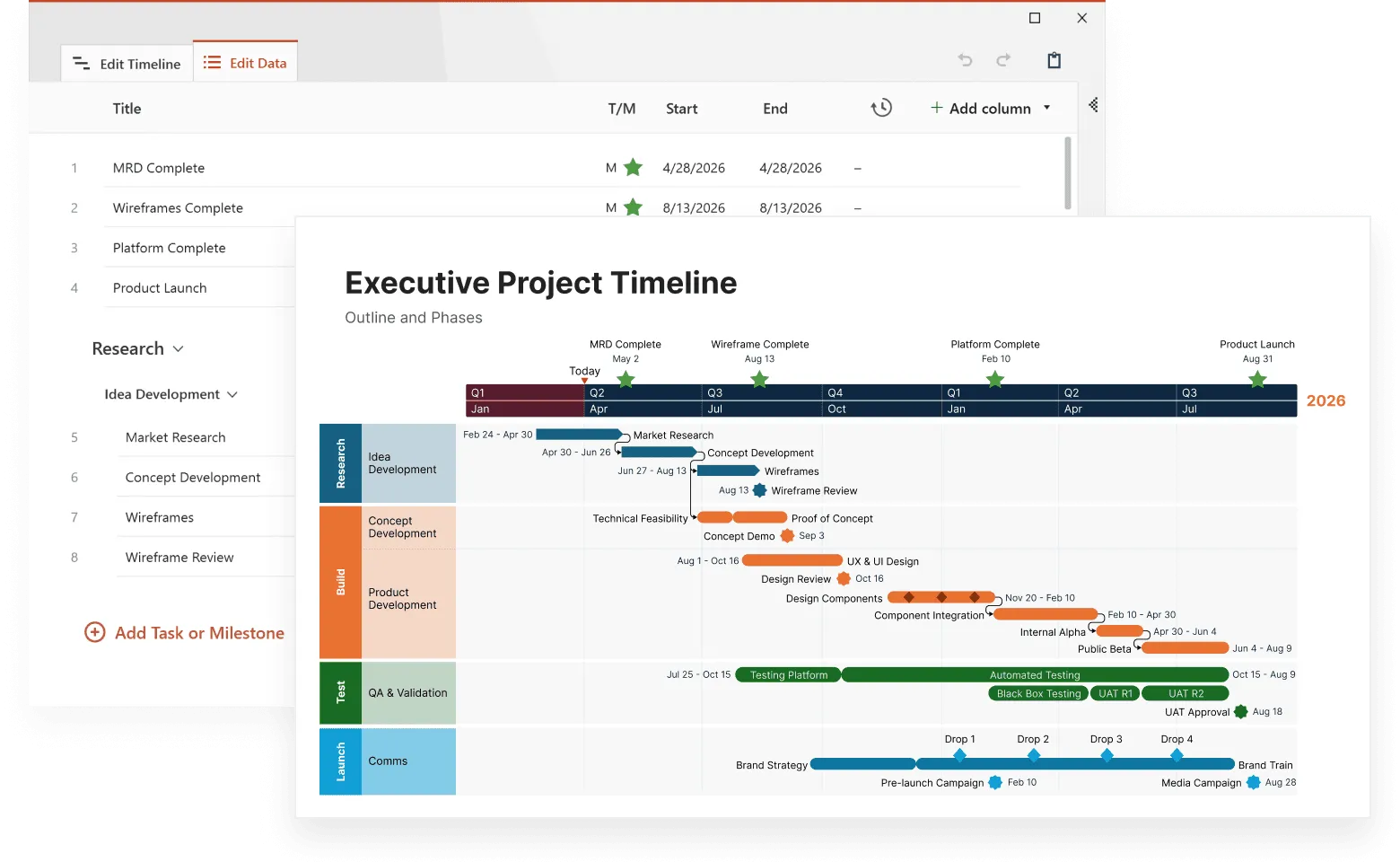
Timelines show events in chronological order, making them useful for understanding historical progression, project planning, and storytelling.
Modern users increasingly prefer interactive timelines because they make information dynamic and engaging. Instead of static visuals, interactive designs allow viewers to explore details, zoom in on specific events, and see how moments connect over time; ideal for both educational and professional use.
Digital timeline tools now offer more flexibility, visual appeal, and functionality than traditional methods. These tools can automatically create timelines, reduce manual work while providing clear ways to display major events, milestones, and deadlines. Project managers use them on a daily basis to track progress and stay on schedule. Students create historical presentations. Content creators organize narratives.
With an online timeline maker, users can create timelines that can be shared with stakeholders, clients, and team members. These tools help manage tasks, track time, and set deadlines, whether you're overseeing a complex project or organizing a simple chronological display.
Modern timeline software makes visual chronology accessible to everyone. From free timeline creators to sophisticated project timeline software, there's a solution designed for every need and skill level. This article explores digital timeline tools and software available today, examining their features, applications, and how to select the right one for your specific requirements.
What are digital timeline tools and why use them?
Digital timeline tools are software applications designed to help users create, customize, and share visual representations of chronological events. These tools range from simple web-based applications to sophisticated desktop software with advanced project management capabilities.
Digital timeline tools offer several advantages over manual methods:
- Effortless editing: Add, remove, or modify events without starting over.
- Dynamic visualization: Automatically adjust spacing and scaling as you add content.
- Rich media integration: Incorporate images, videos, documents, and hyperlinks.
- Collaborative capabilities: Multiple users can view and edit timelines simultaneously.
- Flexible output: Export in various formats for presentations, websites, or printed materials.
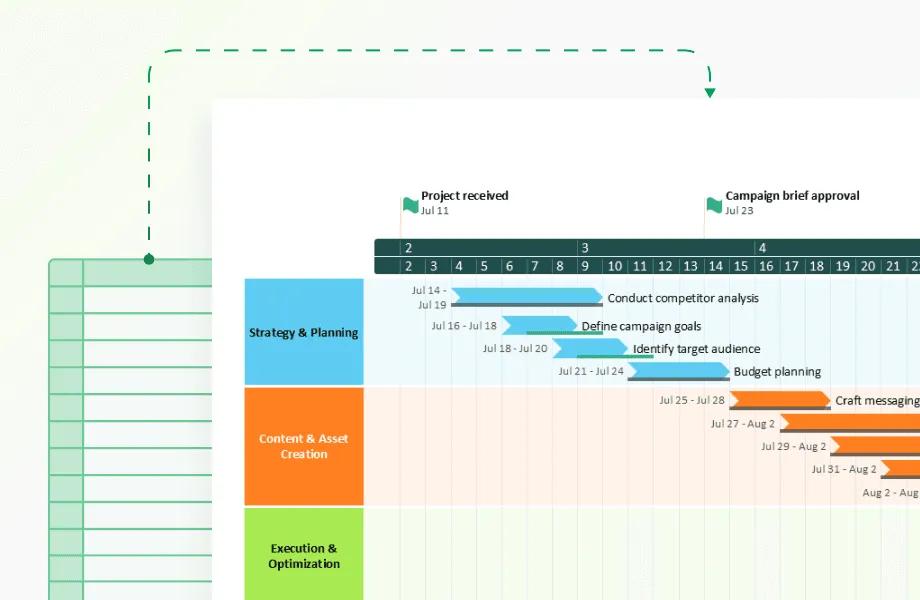
- Data integration: Connect to spreadsheets, databases, or other information sources.
- Calendar integration: Sync with existing calendars to manage tasks and timelines effectively.
Timeline software serves diverse users across many fields. Students create timelines for educational assignments and research projects. Project managers use them to visualize schedules, dependencies, and resource allocation. These tools can sync with existing calendars to improve usability and collaboration.
Historians and researchers develop timelines to map events and identify patterns. Content creators and marketers employ timelines for brand storytelling and campaign planning. Tracking due dates helps ensure timely task completion across all these applications.
Exploring types of timeline software
The digital timeline market offers several distinct categories of tools, each with specific strengths and limitations:
Web-based timeline tools
Web-based timeline tools run in your browser without requiring software installation. You can access them from any internet-connected device, with automatic saving and cloud storage built in. Sharing and collaboration happen instantly, and updates install automatically.
TimelineJS, Tiki-Toki, and Office Timeline Online represent popular options in this space. These platforms vary significantly in customization levels and feature sets. Many offer free plans with basic functionality, though premium versions unlock advanced features like custom branding, increased storage, or enhanced collaboration tools.
The trade-off with web-based tools often comes down to internet dependency and potential limitations when handling very large datasets compared to desktop alternatives.
Desktop timeline software
Desktop applications install directly on your computer and typically handle large datasets more efficiently. The performance difference becomes noticeable when you're working with hundreds of events or complex media-rich timelines.
Key advantages include:
- Offline functionality - work on timelines without internet access
- Superior processing power for complex visualizations
- Faster rendering of timeline elements
- Deep integration with other desktop applications
- More sophisticated customization options
- Better performance with large files and datasets
Microsoft Visio, SmartDraw, and the Office Timeline add-in for PowerPoint exemplify this category. Office Timeline, for instance, integrates directly into PowerPoint presentations, making it simple to create professional timeline slides for business meetings. SmartDraw offers templates specifically designed for different industries, from legal case timelines to product development schedules.
However, desktop software requires manual updates and limits collaboration since files typically live on individual computers rather than shared cloud environments. File sharing usually happens through email or shared drives, which can create version control issues when multiple people need to contribute.
Get the best of desktop timeline power
Try Office Timeline for free. Effortlessly build clear, executive-ready timelines without leaving your presentation workflow.
Platforms with integrated timeline features
Many project management platforms now include timeline functionality as part of their broader toolset. This integration means your timeline data stays consistent across different project views - whether you're looking at a Gantt chart, kanban board, or calendar view.
Microsoft Project, Asana, ClickUp, and monday.com incorporate timeline views within their platforms. This approach works well when you're already using these tools for project management, since you avoid switching between different applications and maintain a single source of truth for your project data.
The limitation here is that timeline features may not be as specialized or feature-rich as dedicated timeline tools, though they often provide sufficient functionality for most project management needs.
What to look for in timeline software
When evaluating timeline tools, focus on capabilities that match how you actually work. The wrong choice can mean hours of frustration or having to start over with a different tool.
Interface that works with you, not against you
The best timeline maker balances powerful features with user-friendly design. You shouldn't need a manual to add your first event. Look for drag-and-drop functionality that feels natural; you should be able to grab an event and move it to a different date without multiple clicks or complex menus.
Clear icons and controls matter more than you might think. When you're deep into creating a timeline with dozens of events, you want to find the "add milestone" button instantly. The workflow for adding and modifying events should feel logical, and you should get immediate visual feedback when making changes so you know your edits took effect.
Customization that matches your needs
Your timeline should communicate your unique information effectively. Basic customization features include color schemes and themes, font selection and text formatting, and layout options like vertical, horizontal, or specialized formats. You might also want background customization and the ability to adjust spacing and scale to fit your content properly.
Consider what type of timeline you're creating. A corporate project timeline needs different visual treatment than a historical research timeline or a personal family history. Some tools excel at business presentations while others work better for academic or creative projects.
Beyond text: multimedia capabilities
Modern timelines incorporate rich media elements that make them more engaging and informative:
- Image upload and manipulation tools
- Video embedding from YouTube, Vimeo, or direct uploads
- Document attachments for supporting materials
- Hyperlinks to external resources
- Audio elements for multimedia presentations
The quality of media integration varies significantly between tools. Some handle large image files smoothly while others compress them heavily. Test how your chosen tool manages the media types you plan to use.
Collaboration features that actually work
For team projects or public presentations, collaboration capabilities can make or break your timeline project. Permission controls should let you decide who can view versus edit your timeline. Real-time collaboration means multiple people can work simultaneously without overwriting each other's changes.
Comment and feedback features help when you need input from stakeholders who shouldn't directly edit the timeline. Public sharing options and website embedding capabilities matter if you're creating timelines for external audiences.
Timeline formats for different purposes
Different projects require different timeline approaches. Linear chronological views work well for historical events or personal milestones. Gantt chart capabilities become important for project management, where you need to show task dependencies and resource allocation.
Milestone highlighting helps emphasize major events within longer timelines. Concurrent event visualization lets you show multiple things happening simultaneously. Zoom functionality becomes critical when you have both broad timeframes and specific detailed periods within the same timeline.
Getting data in and out
Professional users need flexibility in how they work with their timeline data. Import capabilities should include spreadsheets, databases, and other common timeline formats. You don't want to manually re-enter data you already have organized elsewhere.
Export options matter for how you'll use your finished timeline. Image formats like PNG or JPG work for simple sharing. PDF export helps with documentation and printing. Interactive HTML export allows web embedding while maintaining functionality. Integration with presentation software like PowerPoint or Google Slides streamlines the process of incorporating timelines into larger presentations.
For project management specifically, look for dependency tracking, resource allocation visualization, critical path highlighting, and progress tracking indicators. These features transform a simple chronological display into a functional project management tool.
A look at some popular digital timeline tools
The timeline software market includes dozens of options, each with distinct strengths. Here's a closer look at tools that stand out in different categories:
- Type: Web-based
- Cost: Free, open-source
- Best for: Simple, media-rich timelines for journalism and education
- Northwestern University's Knight Lab created TimelineJS as a free tool that creates visually appealing, interactive timelines.
- The tool integrates with Google Sheets. You populate timeline data in a familiar spreadsheet format, and TimelineJS generates the visualization automatically. This approach works well for teams already using Google Workspace tools.
- Journalists use TimelineJS for breaking down complex news stories. Educators create engaging historical content. The focus on media integration means easy incorporation of images, videos, and audio for rich, interactive experiences.
- The trade-off is simplicity - you won't find advanced project management features, but the beautiful output makes it perfect for narrative-focused applications.
- Type: Desktop (PowerPoint add-in)
- Cost: Free basic edition, paid plans start at $9/month
- Best for: Business presentations and project management timelines
- Office Timeline integrates directly with PowerPoint, creating professional-looking timelines and Gantt charts within your existing presentations. This proves particularly valuable for project managers who frequently present timeline information to stakeholders.
- The tool offers numerous templates designed specifically for business contexts, from product launches to budget planning schedules.
- Data synchronization with Excel, Microsoft Project, and Wrike means automatic updates as project data changes elsewhere.
- For organizations invested in Microsoft's ecosystem, Office Timeline provides seamless workflow integration without learning new software interfaces.
- Type: Web-based project management platform
- Cost: From $9/user/month
- Best for: Collaborative project management timelines
- Smartsheet combines spreadsheet functionality with robust project management tools, including Gantt charts and timeline views.
- The platform excels when managing complex projects with interdependencies. You get comprehensive timeline capabilities within a broader work management system, eliminating the need to switch between different tools for project tracking and timeline visualization.
- Type: Web-based
- Cost: Free basic version, premium from $9.50/month
- Best for: Highly visual, 3D interactive timelines
- Tiki-Toki creates visually striking timelines with 3D navigation options and comprehensive multimedia support. The platform excels in presentation quality, allowing stories to unfold through combinations of text, images, videos, and audio.
- While less suitable for project management, its immersive experience makes it ideal for educational applications and storytelling projects. The 3D interface creates engaging experiences that hold viewer attention longer than traditional flat timelines.
- Type: Web-based
- Cost: Free basic version, premium from $10/month
- Best for: Visual timelines with layered categories
- Preceden's layer system allows you to group related events into categories, making complex timelines much more readable. Imagine tracking personal milestones and career achievements on the same timeline, each in its own visual layer.
- Key features include:
- Clean, intuitive interface
- Image support and custom colors
- Detailed event descriptions
- Export to images, PDFs, and embeddable formats
- The balance between simplicity and functionality works well for both personal projects and professional presentations.
- Type: Web-based
- Cost: Free basic version, premium from $11/month
- Best for: Quick, presentation-quality timelines
- Vizzlo specializes in creating business graphics, including timelines, with professional aesthetics and minimal effort. The platform offers numerous timeline templates for different purposes with straightforward customization options.
- Integration with presentation software and collaboration tools makes it particularly useful for business users who need quick, professional-looking visuals.
- Type: Desktop (Windows, Mac)
- Cost: $65 one-time purchase
- Best for: Writers, researchers, and complex timeline creation
- Aeon Timeline stands out for writers, researchers, and anyone creating sophisticated chronologies. It supports relationships between events, entity tracking, and arc development.
- Authors use it for narrative planning. Historians track interconnected historical events. The software's ability to handle multiple interconnected timeline elements makes it valuable when simple chronological order isn't sufficient.
- You can track characters, plotlines, and historical contexts simultaneously within the same timeline structure.
Integrating timelines with your existing workflow
Digital timelines work best when they connect smoothly with tools you already use. The right integrations can save hours of manual data entry and keep your information synchronized across platforms.
Website and content integration
Most timeline tools offer embedding options that let you place interactive timelines directly into websites or blogs. You get an embed code that works like embedding a YouTube video - paste it into your site, and visitors can interact with your timeline without leaving your page.
Some tools generate responsive embeds that automatically adjust to different screen sizes. This matters if you're creating timelines for websites that people will view on phones, tablets, and desktops.
Cloud storage connections
Google Drive integration appears in many timeline tools, letting you access and edit timelines from anywhere with internet access. This connection often works both ways - you can import data from Google Sheets to populate your timeline, and changes you make to the timeline can sync back to your spreadsheet.
Timeline tools that connect with Dropbox, OneDrive, or other cloud storage services give you similar flexibility. You can work on timelines from different devices without worrying about file versions or losing your work.
Project management platform integration
Many timeline tools integrate with popular project management platforms:
- Kanban board connections let you view the same project data as both timeline and task cards
- Gantt chart integration provides different visual perspectives on the same project information
- Calendar synchronization keeps timeline events aligned with meeting schedules and deadlines
These integrations prevent the frustration of updating the same information in multiple places. When you mark a task complete in your project management tool, it can automatically update your timeline view.
Data import and export flexibility
Professional timeline tools support importing from Excel, CSV files, and database exports. This means you can use existing project data without starting from scratch. Some tools also export to formats like Microsoft Project or other specialized software.
The ability to export timeline data back to spreadsheets helps when you need to manipulate the information in other tools or share it with people who don't have access to your timeline software.
API access for custom integrations
Advanced users can take advantage of API access to create custom integrations with internal business systems. This lets you automatically populate timelines with data from CRM systems, databases, or other specialized software your organization uses.
By integrating digital timelines with other tools, project managers can create workflows where information flows automatically between different systems. This seamless integration keeps all project data consistent and accessible, improving collaboration and efficiency across teams without requiring manual updates in multiple places.
Choosing the right timeline software for your project management needs
Selecting the appropriate timeline tool requires matching your specific requirements with available features. The wrong choice can lead to frustration, wasted time, or having to switch tools mid-project.
Define your purpose first
Your intended use determines which features matter most. Project management applications need Gantt chart functionality, dependency tracking, and resource allocation capabilities. You'll want to see how tasks connect to each other and identify potential bottlenecks before they become problems.
Historical or educational timelines prioritize multimedia integration and presentation quality. You need tools that handle images, videos, and audio smoothly while creating visually appealing displays that engage your audience.
Storytelling applications require strong visual design and interactive elements. The timeline becomes part of the narrative experience, so aesthetics and user engagement features take priority over project management functionality.
Research projects benefit from tools with relationship mapping and detailed information management. You might need to track connections between events, people, or concepts that aren't simply chronological.
Match complexity to your needs
Simple chronology projects often work well with basic web-based tools. If you're creating a straightforward sequence of events without complex relationships or dependencies, don't overcomplicate the process with advanced software.
Multi-layered relationships require specialized software like Aeon Timeline, which handles interconnected elements that basic tools can't manage effectively. Complex research projects or narrative planning fall into this category.
Project tracking benefits from project management platforms with built-in timeline views. These tools integrate timeline visualization with task management, resource planning, and team collaboration features.
Technical and practical considerations
User expertise should match the tool's complexity. Advanced software with powerful features won't help if your team can't use it effectively. Consider the learning curve and available training resources.
Integration needs matter for workflow efficiency. Evaluate compatibility with your existing software ecosystem - email, cloud storage, project management tools, and presentation software. Seamless integration prevents data silos and reduces manual work.
Platform requirements depend on how and where you'll work. Mobile access becomes important for field work or travel. Offline capabilities matter if internet connectivity is unreliable.
Budget considerations and feature trade-offs
Free options typically offer basic functionality with specific limitations:
- Restricted number of timelines or events
- Limited export options
- Basic customization capabilities
- Watermarks on exported content
- Minimal support options
Premium options generally provide advanced features and customization, priority customer support, robust collaboration capabilities, professional export options, and removal of vendor branding. Many tools also offer a range of design assets, such as charts and graphs, to enhance the visual appeal of timelines.
For occasional, simple timeline creation, free tools often provide sufficient functionality. For professional applications, regular use, or complex projects, investing in premium software typically delivers better results and improved efficiency. The time saved and professional appearance often justify the cost, especially for business applications where timeline quality reflects on your organization's professionalism.
Getting started with timeline creation in digital tools
While each platform has its unique workflow, most timeline creation follows a logical sequence that helps you build effective chronological displays.
Define your timeline scope and structure first
Before opening any software, spend time planning your approach. Determine the time period you'll cover - this affects which tool features you'll need and how much detail to include. A timeline covering decades requires different treatment than one focusing on a single month.
Identify the key events to include and consider how to organize or categorize them. Will you group events by theme, department, or participant? Decide what information will accompany each event - just dates and titles, or detailed descriptions with supporting media?
This planning phase prevents you from getting overwhelmed once you start building. It's much easier to add events systematically when you have a clear structure in mind.
Set up your tool and basic structure
Choose appropriate software based on your needs analysis from earlier sections. Create a new timeline project and configure basic settings like orientation (horizontal vs. vertical), time scale, and display preferences.
Apply a template or theme if your chosen tool offers them. Templates provide professional starting points and ensure visual consistency. Start creating your timeline by exploring the tool's features and capabilities - most platforms offer tutorial content or sample projects to help you understand the interface.
Build your timeline systematically
Enter dates and titles for each event, working chronologically or by category depending on your preference. Add descriptions and supporting details that provide context without overwhelming the visual display.
If your tool supports it, organize events into categories or layers. This helps manage complex timelines with multiple types of information. Establish relationships or dependencies between events when relevant - this becomes particularly important for project management applications.
Enhance with visual elements strategically
Add relevant images to illustrate key events, but avoid cluttering the display with unnecessary graphics. Incorporate videos where they add value rather than distraction. Use color coding consistently to distinguish categories or types of events.
Apply consistent formatting for readability across all elements. This includes font choices, spacing, and visual hierarchy. Professional-looking timelines follow design principles that guide the viewer's eye through the information logically.
Review, refine, and test
Check for accuracy in dates and information before sharing your timeline. Small errors can undermine credibility, especially in professional contexts. Test interactive elements if applicable to ensure they work smoothly across different devices and browsers.
Gather feedback from colleagues or your intended audience. Fresh eyes often catch issues you've missed and can suggest improvements to clarity or organization.
Share and distribute effectively
Export in appropriate formats for your needs - high-resolution images for print materials, interactive HTML for websites, or PDF versions for email distribution. Configure sharing permissions carefully, especially for collaborative projects where you need to control editing access.
Generate embed codes for websites if needed, and create presentation slides incorporating your timeline for meetings or presentations. Consider how your audience will access and use the timeline when choosing distribution methods.
The key to successful timeline creation lies in matching your approach to your specific goals and audience needs, then following a systematic process that builds complexity gradually rather than trying to perfect everything at once.
Conclusion
Digital timeline tools offer more flexibility and functionality than paper methods. From free web-based applications to sophisticated project management platforms, there's likely a good fit for your specific needs.
When selecting timeline software, match your choice to your purpose. Simple educational timelines don't need complex project management features, while multi-department projects require robust collaboration capabilities. Consider your technical requirements, team collaboration needs, and budget constraints.
Planning often matters more than the specific software you choose. Clear scope definition, well-organized content, and thoughtful visual design create effective timelines regardless of platform. Focus first on organizing your content logically, then let the software enhance your presentation through visual elements and interactive features.
Start by experimenting with free versions of tools mentioned in this article. TimelineJS works well for web embedding, Preceden offers clean organization with layers, and Office Timeline integrates seamlessly with PowerPoint presentations. Many platforms offer free trials that let you test functionality before committing to premium features.
The right timeline tool makes creation easier and produces more engaging results. Whether you're managing projects, teaching history, or telling stories, these tools help turn complex chronological information into clear visual displays your audience can understand and use effectively.
Frequently asked questions
Here are answers to common questions people ask when choosing and using digital timeline software tools. These cover the most practical concerns users have when getting started with digital timeline creation.
Timeline tools display events in chronological order with equal visual weight, focusing on when things happened. Gantt charts show task duration, dependencies, and scheduling. They're specialized for project management where you need to see how long tasks take and which ones depend on others.
Many professional tools offer both capabilities. Office Timeline, for example, creates both timelines and Gantt charts directly in PowerPoint, making it easy to switch between views for different presentation needs. If you're tracking project deadlines and resource allocation, you want Gantt functionality. For historical events, educational content, or storytelling, standard timeline tools work better.
Absolutely. Modern timeline tools like TimelineJS, Tiki-Toki, and Office Timeline use drag-and-drop interfaces with templates that require no coding knowledge. You can create professional-looking timelines in minutes by simply entering your dates and events.
Most tools offer tutorials and templates to get you started. The learning curve is minimal - if you can use basic software like Word or PowerPoint, you can create timelines.
Yes, several free options offer robust functionality:
- TimelineJS: completely free, open-source, excellent for web embedding;
- Office Timeline: free basic version that integrates with PowerPoint;
- Google Sheets timeline templates: basic but functional for simple projects;
- Canva: free version of Canva’s timeline maker with design templates;
- Lucidchart: limited free plan with timeline capabilities.
Free tools may include branding or limit project numbers, but they're genuinely useful for most basic timeline needs.
Web-based tools like TimelineJS, Tiki-Toki, and Preceden generate embed codes you paste into your website HTML. These create interactive timelines where visitors can zoom, scroll, and click on events without leaving your page.
TimelineJS works particularly well for this - you create your timeline in Google Sheets, and it automatically generates responsive HTML that works on desktop and mobile devices.
Choose cloud-based tools with real-time editing like Smartsheet, monday.com, or ClickUp. These platforms offer commenting, task assignment, permission controls, and change tracking so team members can work simultaneously from anywhere.
For teams already using Microsoft Office, Office Timeline offers collaboration through PowerPoint's built-in sharing features and integrates with Excel and Project data that teams often maintain collectively. Avoid standalone desktop software for team projects. Web-based tools and integrated solutions, like Office Timeline Online, handle collaboration much better.
Most professional timeline tools accept data from Excel, CSV files, or Google Sheets. This saves time when you already have project data organized elsewhere.
TimelineJS works directly with Google Sheets: you format your data in their template, and it automatically creates your timeline. Tools like Smartsheet, Office Timeline, and Preceden also import from common spreadsheet formats, making it easy to turn existing project data into visual timelines.
For project management, choose tools with Gantt capabilities like Smartsheet, monday.com, or Microsoft Project. You need dependency tracking, resource allocation, and collaboration features. Office Timeline bridges this gap by creating professional project timelines in PowerPoint while syncing with project management data from other tools.
For education or presentations, prioritize visual appeal and multimedia support. TimelineJS, Tiki-Toki, and Vizzlo create engaging timelines with images, videos, and interactive elements that work well for storytelling and teaching. Office Timeline also works well for educational presentations since it creates polished timelines that integrate seamlessly into PowerPoint slide decks.