
Timeline creation — simplified
Create timelines in minutes for any project plan or roadmap.
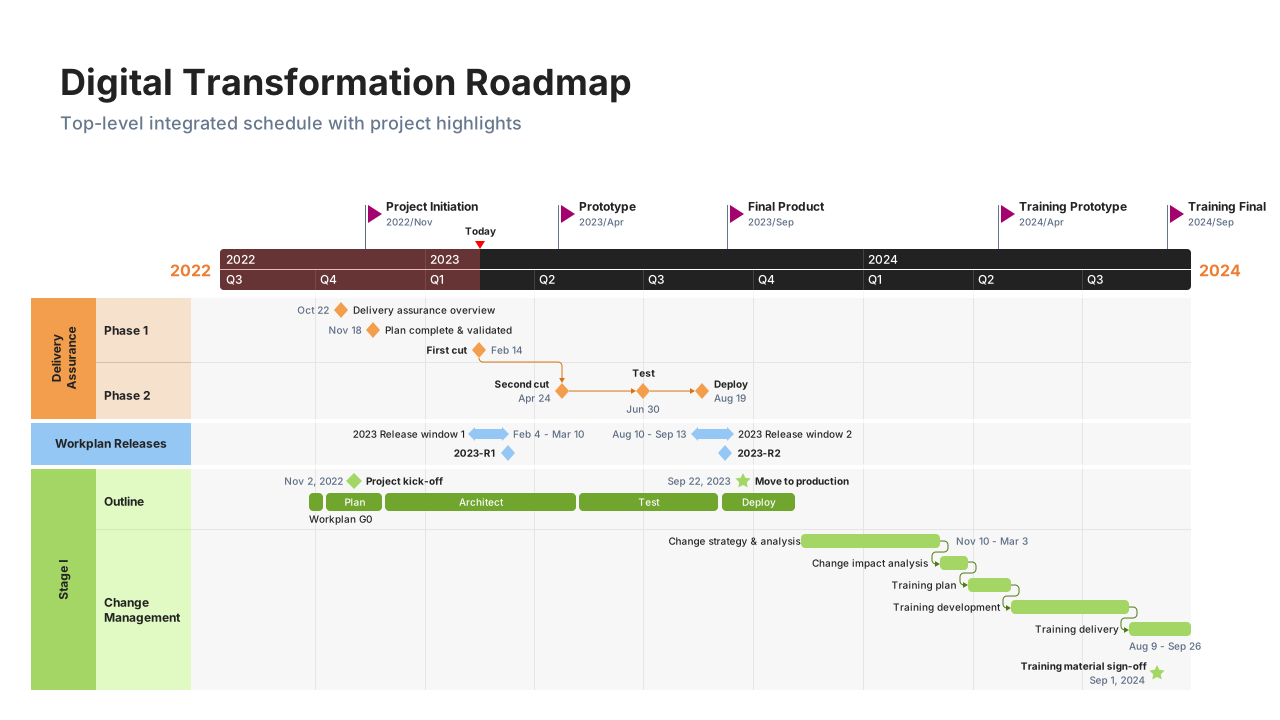
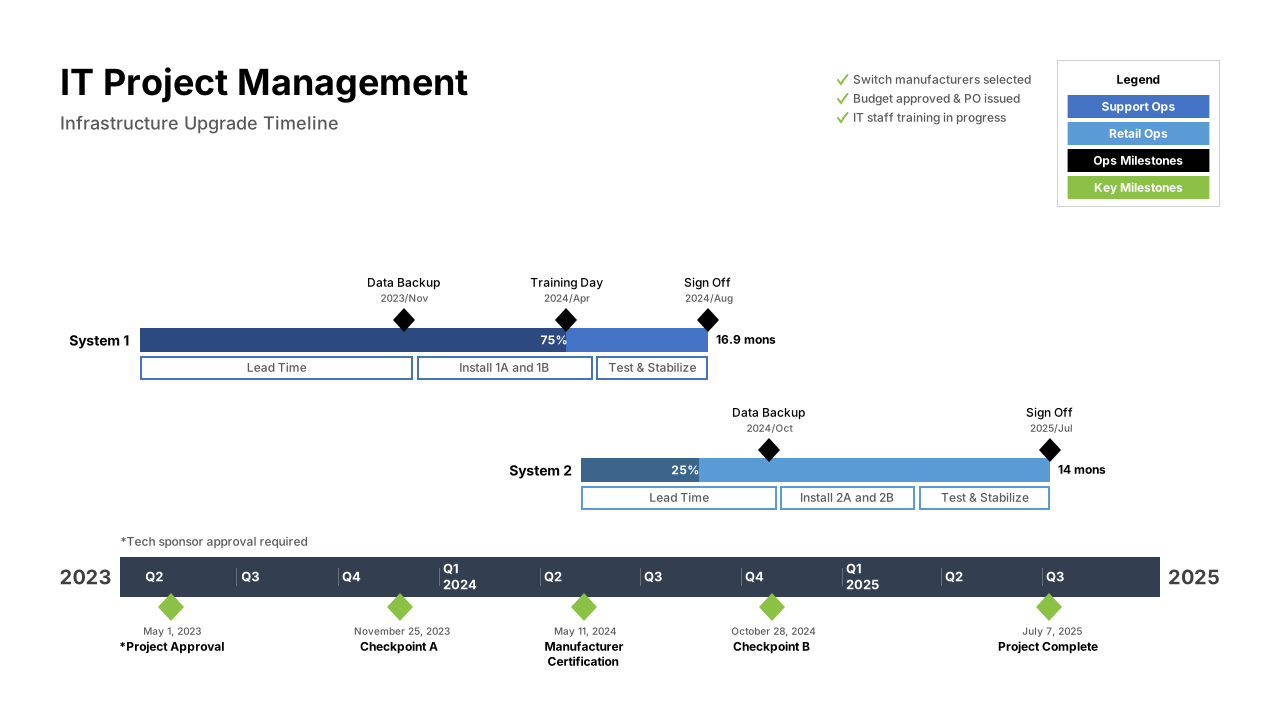
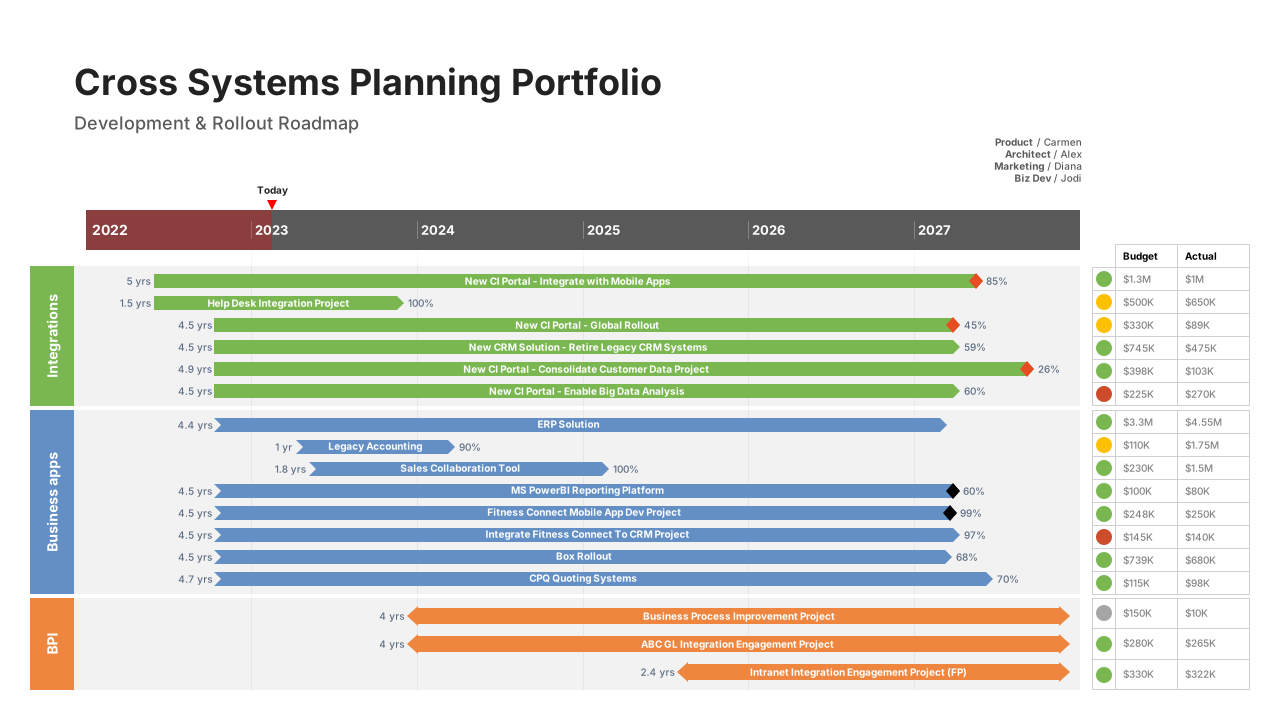
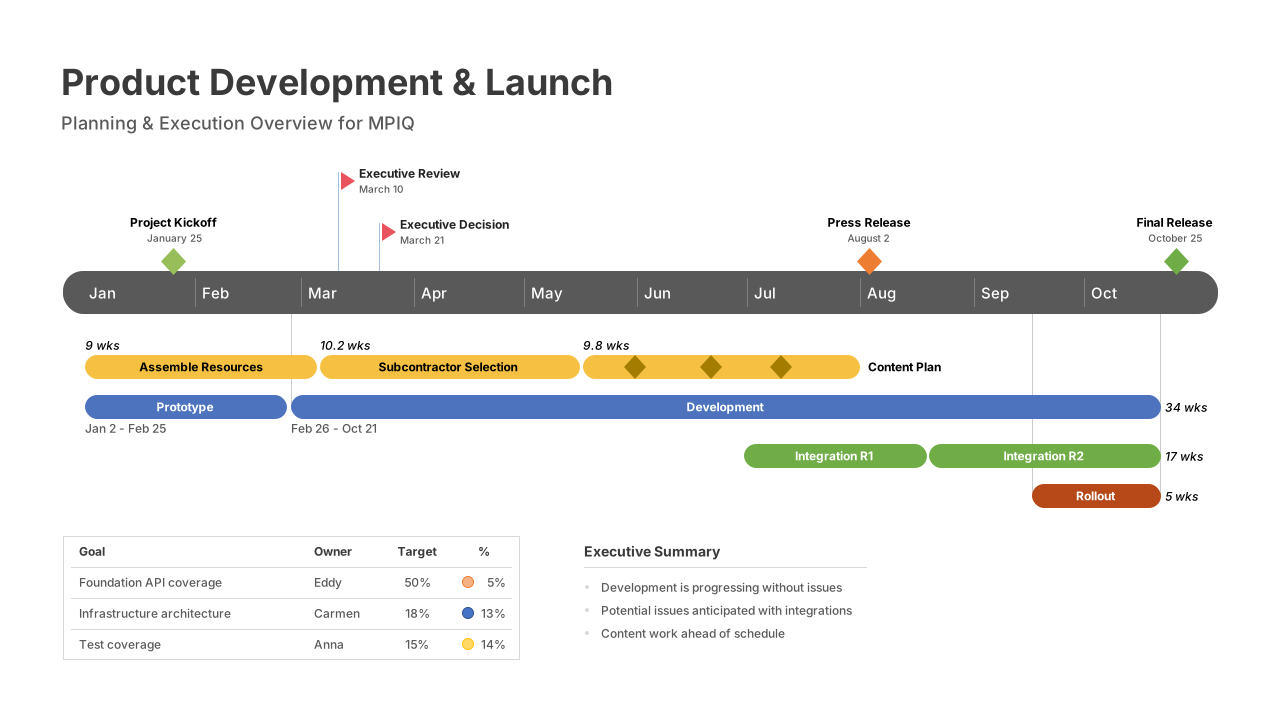
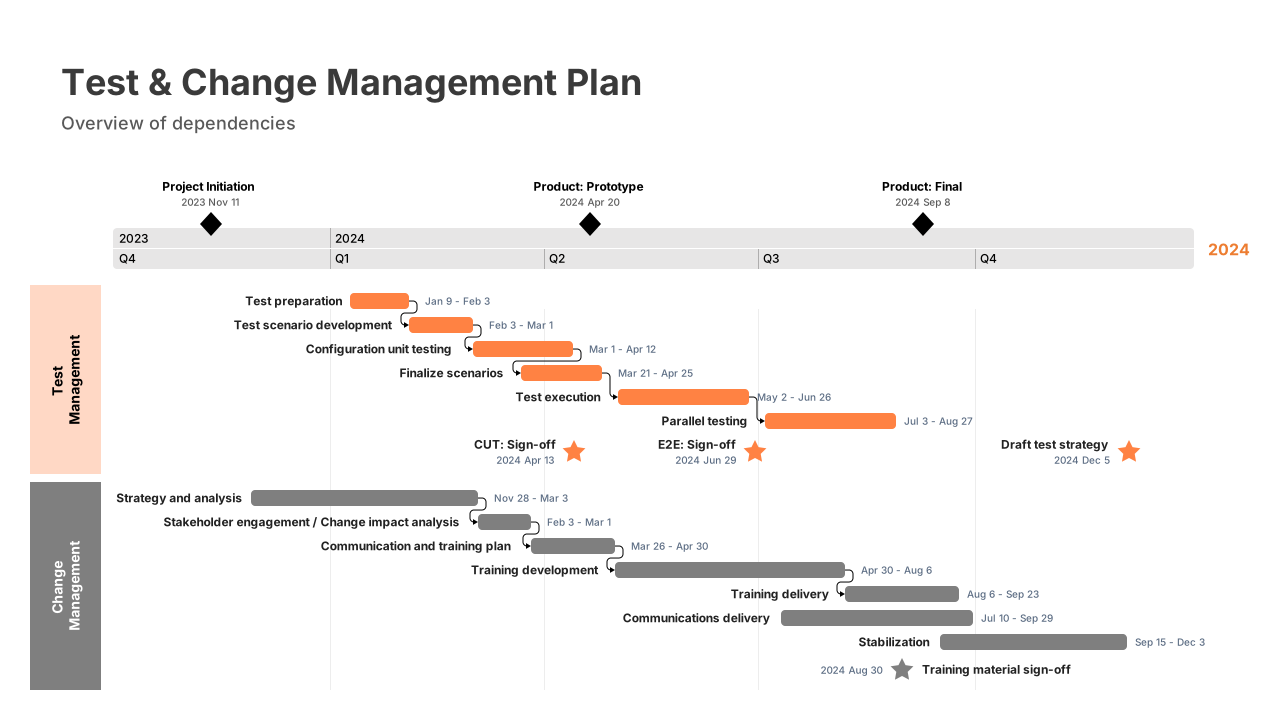
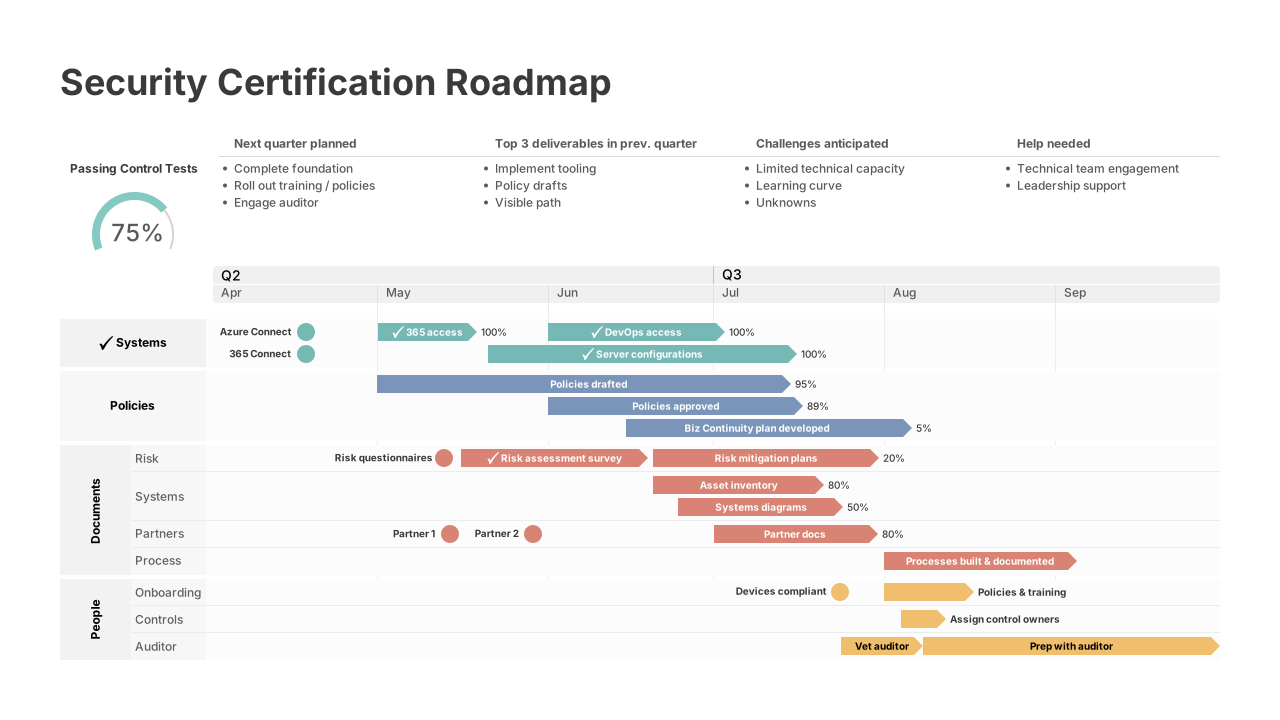
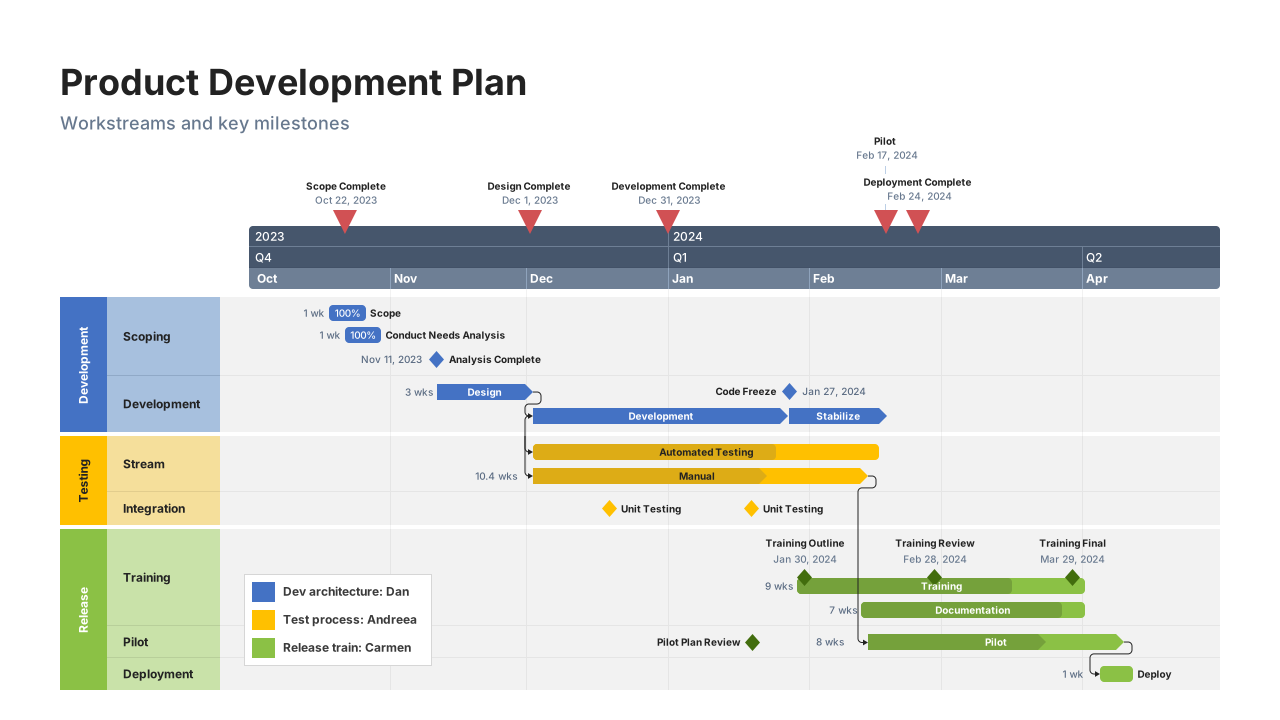






The fastest way to create professional timelines

Simple timeline creation
Build professional timelines in minutes.

Automatic date alignment
Keep schedules accurate as plans evolve.

Clear visual communication
Share timelines stakeholders instantly understand.
Play Video
Build your timeline in under 2 minutes
- Connect your data to Office Timeline: Link Excel files, import from project tools, or enter data directly.
- Choose the right timeline format: Select from timelines, Gantt charts, roadmaps, and swimlane views.
- Customize and present: Apply templates and styles to create visuals ready for any audience.
Which add-in plan is the best fit for you?
Lite
Create simple, professional timelines with ease.
less than
1-yearLitelicense, billed annually
Key features:
- Make timelines with up to 2 Swimlanes
- Stylish pre-designed themes
- Timeline & Swimlane templates
- Make timelines and Gantt charts
- Copy & paste from Excel
- Standard support
- Free updates
most popular
Plus
Create customized timelines for impactful project visuals.
less than
1-yearPluslicense, billed annually
All the features of Lite, and:
- Import data from Excel
- Make timelines with an unlimited number of Swimlanes
- Make roadmaps with Sub-swimlanes
- Show dependencies & critical path
- Templates with Sub-swimlanes
- Show multiple timescales on a timeline
most advanced
Expert
Create professional reports with advanced templates, powerful integrations, and planned vs. actual insights.
less than
1-yearExpertlicense, billed annually
All the features of Plus, and:
- Stay on brand with custom themes
- Act early and stay on schedule with Planned vs. Actual
- Standardize visuals with shared themes
- Create your own reusable templates
- Import into custom themes
- Integrates with Project, Smartsheet, Jira, etc.
- Premium support
Make timelines your audience actually wants to see
- Office Timeline
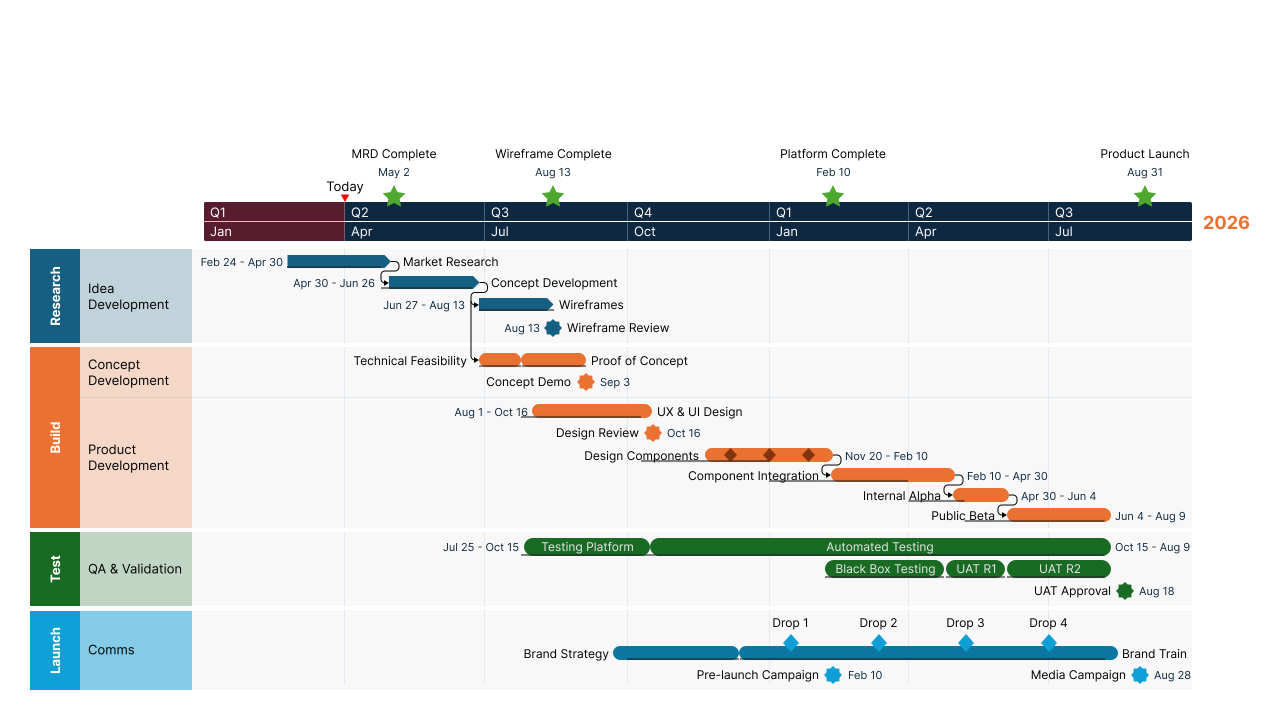
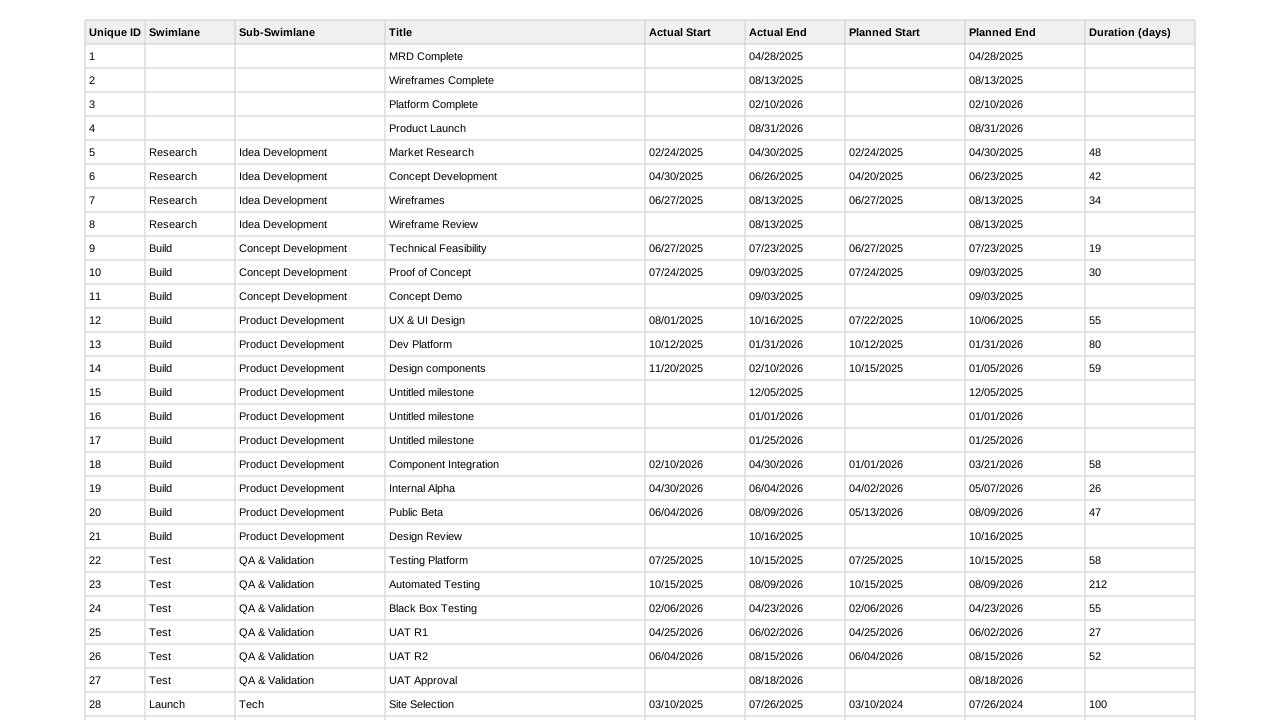 Generic data
See why professionals love Office Timeline
We've used it for long enough that I don't know how we would be able to quickly demonstrate where we are in the project and what the forecast and work streams look like without a tool like Office Timeline.
 Amy BalesVP, Project Manager III, BOK Financial
Using Office Timeline has saved me heaps of time and allowed me to get the right visualization for our clients, whether that's for an executive board meeting, a SteerCo, or a weekly team update meeting. It's the best tool out there for planning visualization.
 Jamie ChristerFounder & Director, Precision Project Partners